
Discover how to clear cache in QuickBooks Online and resolve common login, display, and performance issues
Qasim Raza | QuickBooks Expert


Accounting & Bookkeeping
QuickBooks
 By qasimquickbooks416@
August 21, 2026
By qasimquickbooks416@
August 21, 2026
How to Clear Cache in QuickBooks Online
 By qasimquickbooks416@
August 21, 2026
By qasimquickbooks416@
August 21, 2026
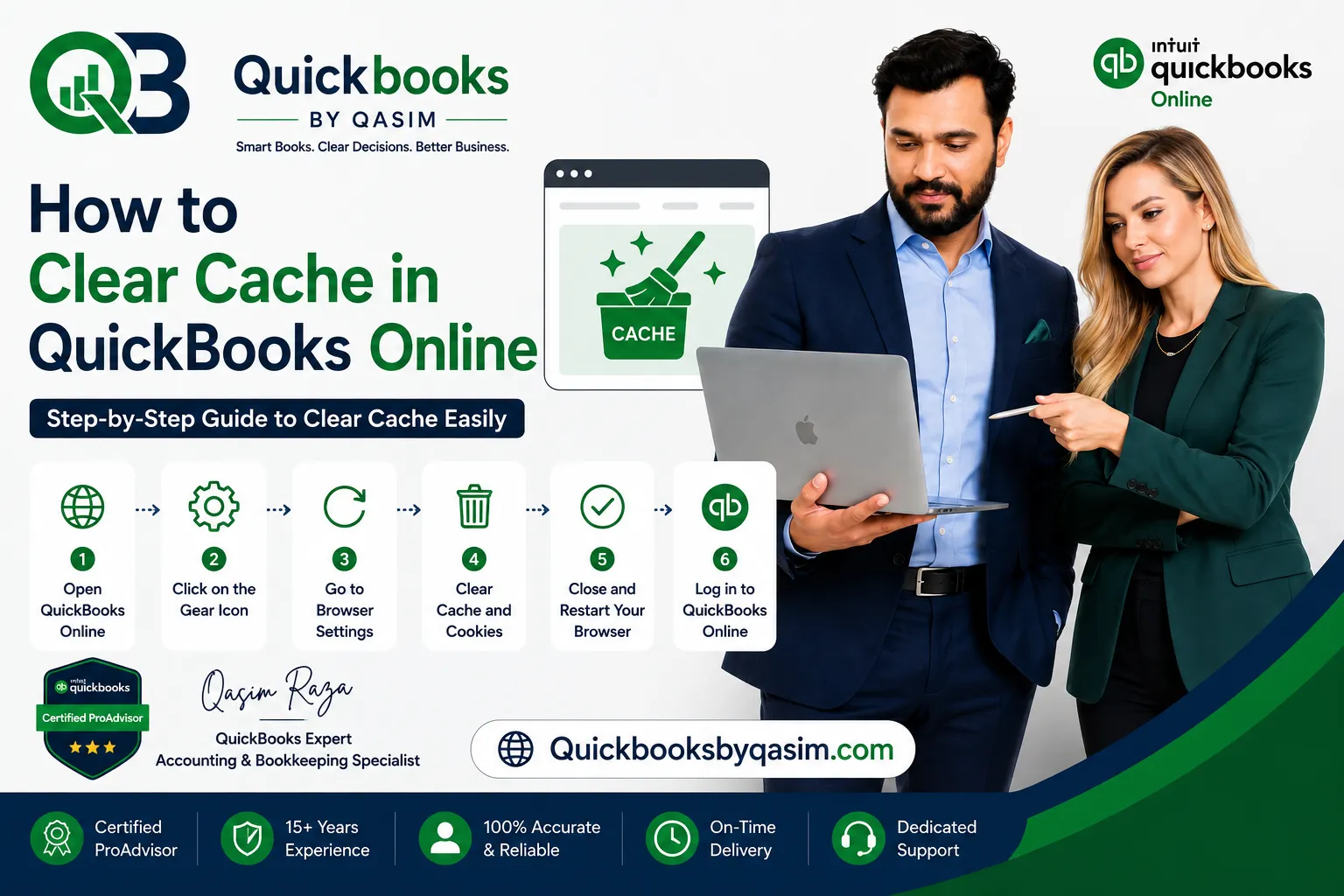
How to clear cache in QuickBooks Online is one of the most common troubleshooting questions among users. Nothing is more frustrating than a slow dashboard, missing buttons, login problems, or pages that refuse to load properly. Many QuickBooks Online issues occur because your browser stores outdated files in its cache. Fortunately, clearing the cache often resolves these problems within minutes. As a QuickBooks Online expert, I recommend this simple troubleshooting step before spending time on advanced fixes. Moreover, clearing browser cache can improve performance, refresh stored website data, and help QuickBooks Online function correctly.
What Is Cache and Why Does It Affect QuickBooks Online?
Cache is temporary browser storage that saves website files on your computer. The browser uses these files to load websites faster during future visits.
Although cache improves browsing speed, it can occasionally cause problems. When QuickBooks Online updates features or settings, the browser may continue using old files. As a result, pages may display incorrect information or fail to load properly.
Common QuickBooks Online issues linked to cache include:
- Slow loading pages
- Login problems
- Missing menus
- Blank screens
- Display errors
- Banking update issues
- Unexpected browser behavior
Therefore, understanding how to clear cache in QuickBooks Online can save time and prevent unnecessary frustration.
Signs That You Need to Clear Cache in QuickBooks Online
Several warning signs indicate that cached browser data may be causing issues.
You should consider clearing cache if:
- QuickBooks Online loads slowly
- Pages freeze frequently
- Reports fail to open
- Banking transactions do not update
- Buttons do not respond
- Error messages appear unexpectedly
- Login sessions disconnect repeatedly
In many cases, clearing browser cache resolves these issues immediately.
Benefits of Clearing Cache in QuickBooks Online
Learning how to clear cache in QuickBooks Online offers several benefits for daily bookkeeping activities.
Improves Performance
Old browser files can slow system performance. Clearing cache helps the browser load updated files faster.
Resolves Display Problems
Many display issues occur because browsers use outdated website data. Therefore, clearing cache often fixes page formatting problems.
Eliminates Login Issues
Cached data sometimes interferes with authentication processes. As a result, users may experience fewer login errors.
Supports Accurate Data Display
Updated browser files help QuickBooks Online display current information correctly.
Additionally, routine browser maintenance keeps your accounting system running smoothly.
How to Clear Cache in QuickBooks Online Using Google Chrome
Google Chrome remains one of the most popular browsers for QuickBooks Online users.
Follow these steps:
- Open Google Chrome.
- Click the three-dot menu.
- Select Settings.
- Choose Privacy and Security.
- Click Clear Browsing Data.
- Select Cached Images and Files.
- Choose the desired time range.
- Click Clear Data.
- Restart the browser.
- Sign in to QuickBooks Online again.
After completing these steps, check whether the issue has been resolved.
How to Clear Cache in QuickBooks Online Using Microsoft Edge
Many businesses use Microsoft Edge for accounting activities.
Follow these steps:
- Open Microsoft Edge.
- Click the three-dot menu.
- Select Settings.
- Click Privacy, Search, and Services.
- Locate Clear Browsing Data.
- Select Choose What to Clear.
- Check Cached Images and Files.
- Choose a time range.
- Click Clear Now.
- Restart the browser.
Then log back into QuickBooks Online and test functionality.
How to Clear Cache in QuickBooks Online Using Mozilla Firefox
Firefox users can follow a similar process.
- Open Firefox.
- Click the menu icon.
- Select Settings.
- Open Privacy & Security.
- Navigate to Cookies and Site Data.
- Click Clear Data.
- Select cached web content.
- Click Clear.
- Restart Firefox.
- Access QuickBooks Online again.
This process often resolves page-loading issues and display errors.
How to Use an Incognito or Private Window
Before clearing cache completely, you can test QuickBooks Online in a private browsing window.
Private browsing ignores most cached data.
Chrome
Press:
Ctrl + Shift + N
Edge
Press:
Ctrl + Shift + N
Firefox
Press:
Ctrl + Shift + P
If QuickBooks Online works properly in the private window, cached browser data is likely causing the issue.
Therefore, clearing cache becomes the next recommended step.
Additional Browser Troubleshooting Tips
Even after learning how to clear cache in QuickBooks Online, some users may experience ongoing problems.
Try these solutions:
- Update your browser
- Disable unnecessary extensions
- Restart your computer
- Check internet speed
- Use a supported browser
- Enable cookies
- Close unused browser tabs
Furthermore, browser updates often contain performance improvements that enhance compatibility with QuickBooks Online.
Best Practices for QuickBooks Online Users
To maintain smooth performance, follow these recommendations.
Clear Cache Regularly
Monthly cache cleaning helps avoid performance issues.
Keep Browsers Updated
Updated browsers improve security and compatibility.
Avoid Excessive Extensions
Multiple browser extensions may interfere with QuickBooks Online functionality.
Use Supported Browsers
Supported browsers provide better stability and performance.
Restart Browsers Frequently
Regular restarts refresh browser resources and improve efficiency.
By following these best practices, users can minimize interruptions and maintain productivity.
Common Questions About Clearing Cache
Will Clearing Cache Delete QuickBooks Data?
No. Clearing cache removes temporary browser files only.
Your accounting data remains safely stored in QuickBooks Online.
Will I Need to Log In Again?
Yes. You may need to enter your login credentials after clearing cache.
How Often Should I Clear Cache?
Most users benefit from clearing cache every few weeks. However, users experiencing problems may do it sooner.
Does Clearing Cache Improve Speed?
Yes. Removing outdated files often improves browser performance and website responsiveness.
Because of these advantages, cache clearing remains a recommended troubleshooting step.
Why Cache Issues Affect Accounting Tasks
QuickBooks Online relies heavily on browser performance. Therefore, outdated browser data can affect many accounting functions.
These functions include:
- Invoice creation
- Expense tracking
- Bank feeds
- Payroll processing
- Report generation
- Customer management
As businesses process transactions daily, maintaining browser health becomes essential.
Consequently, many QuickBooks Online support specialists recommend clearing cache before attempting advanced troubleshooting steps.
Conclusion
Understanding how to clear cache in QuickBooks Online can help resolve many common issues, including slow performance, login errors, display problems, and banking update failures. By clearing cached browser files regularly, users can improve system responsiveness and ensure QuickBooks Online displays accurate information. Whether you use Chrome, Edge, or Firefox, the process takes only a few minutes. Regular browser maintenance supports smoother bookkeeping operations, reduces downtime, and helps your QuickBooks Online experience remain efficient and reliable.
For a complete overview of QuickBooks Online, read our QuickBooks Online Complete Guide 2026