
Discover how to create purchase order in QuickBooks, track vendor orders, manage inventory, and improve purchasing
Qasim Raza | QuickBooks Expert


Accounting & Bookkeeping
QuickBooks
 By qasimquickbooks416@
August 22, 2026
By qasimquickbooks416@
August 22, 2026
How to Create Purchase Order in QuickBooks
 By qasimquickbooks416@
August 22, 2026
By qasimquickbooks416@
August 22, 2026
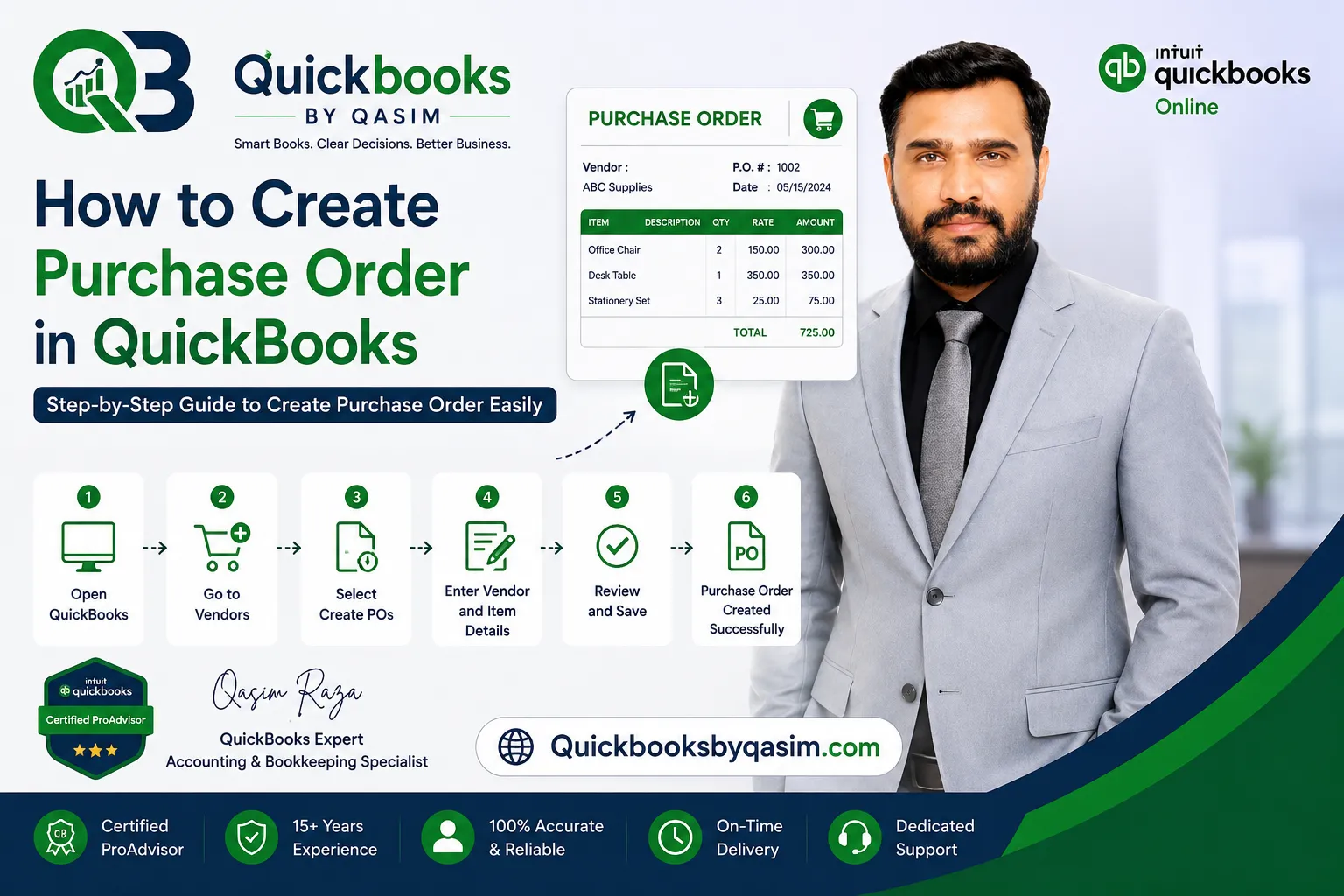
How to create purchase order in QuickBooks is a common question for business owners who want better control over purchasing and inventory management. Missing supplier orders, incorrect quantities, and poor expense tracking can create costly problems. Fortunately, QuickBooks makes the purchase order process simple and organized. As a QuickBooks Online expert, I recommend using purchase orders to document vendor requests before receiving inventory or bills. This approach improves accuracy, strengthens vendor communication, and helps businesses maintain better financial control.
What Is a Purchase Order in QuickBooks?
A purchase order is a document that a buyer sends to a vendor to request products or services. It contains item details, quantities, prices, and delivery information.
In QuickBooks, a purchase order helps you track pending purchases before receiving inventory or entering vendor bills.
A purchase order typically includes:
- Vendor name
- Purchase order number
- Product descriptions
- Quantity ordered
- Item rates
- Total amount
- Delivery details
Because purchase orders create a clear purchasing record, they help reduce misunderstandings between buyers and suppliers.
Why Use Purchase Orders in QuickBooks?
Before learning how to create purchase order in QuickBooks, it is important to understand the benefits.
Purchase orders help businesses:
- Track vendor orders
- Improve inventory management
- Prevent ordering mistakes
- Control purchasing expenses
- Maintain accurate records
- Simplify bill matching
- Improve vendor communication
Furthermore, purchase orders provide a documented approval process before spending company funds.
Requirements Before Creating a Purchase Order
Before creating a purchase order, ensure that:
- Vendor records exist in QuickBooks
- Products or services are set up
- Purchasing permissions are enabled
- Inventory items are properly configured
- Vendor information is accurate
Preparing these details first makes the purchase order process faster and more efficient.
How to Create Purchase Order in QuickBooks Online
If you use QuickBooks Online, follow these steps.
Step 1: Open QuickBooks Online
Sign in to your QuickBooks Online account.
Navigate to the dashboard.
Step 2: Create a New Transaction
Click the + New button.
Under the Vendors section, select Purchase Order.
Step 3: Select a Vendor
Choose the vendor from the dropdown list.
QuickBooks automatically fills available vendor information.
Step 4: Enter Purchase Order Details
Enter:
- Mailing address
- Purchase order date
- Expected delivery date
- Purchase order number
Verify all information before moving forward.
Step 5: Add Products or Services
Select the required items.
Enter:
- Item descriptions
- Quantity
- Cost rate
- Amount
Review quantities carefully to avoid ordering mistakes.
Step 6: Save the Purchase Order
Click:
- Save and Close
- Save and Send
- Save and New
If needed, email the purchase order directly to the vendor.
This process explains the easiest way of how to create purchase order in QuickBooks for QuickBooks Online users.
How to Create Purchase Order in QuickBooks Desktop
Many businesses still use QuickBooks Desktop for purchasing activities.
Follow these steps:
- Open QuickBooks Desktop.
- Select Vendors.
- Click Create Purchase Orders.
- Choose the vendor.
- Enter shipping details.
- Add item information.
- Enter quantities and costs.
- Review the purchase order.
- Save the transaction.
- Send it to the vendor if required.
The process remains straightforward and provides strong purchasing control.
Key Fields Found in a Purchase Order
Understanding purchase order fields helps ensure accuracy.
Common fields include:
Vendor Information
This section identifies the supplier receiving the order.
Purchase Order Number
Each purchase order receives a unique identifier for tracking.
Item Details
This section contains products, services, and quantities ordered.
Shipping Information
Shipping details inform vendors where to deliver products.
Notes Section
Use notes to communicate special instructions or delivery requirements.
Completing all fields carefully improves order accuracy.
How Purchase Orders Improve Inventory Management
Inventory management becomes easier when businesses use purchase orders consistently.
Purchase orders help you:
- Monitor incoming inventory
- Prevent stock shortages
- Forecast purchasing needs
- Track outstanding orders
- Improve replenishment planning
As a result, businesses avoid inventory disruptions and maintain customer satisfaction.
Moreover, purchase orders provide visibility into future inventory arrivals.
Converting Purchase Orders into Bills
One major advantage of learning how to create purchase order in QuickBooks involves converting orders into bills.
Once products arrive:
- Open the purchase order.
- Verify received quantities.
- Create a vendor bill.
- Match inventory received.
- Save the transaction.
This process improves bookkeeping accuracy and prevents duplicate entries.
Additionally, matching bills against purchase orders strengthens internal controls.
Common Purchase Order Mistakes to Avoid
Businesses often make avoidable purchasing errors.
Incorrect Vendor Selection
Always verify the vendor before sending a purchase order.
Wrong Quantities
Double-check quantities before saving the purchase order.
Missing Item Details
Complete descriptions help vendors fulfill orders correctly.
Duplicate Orders
Review outstanding purchase orders before creating new ones.
Failure to Track Open Orders
Regularly review pending orders to avoid missed deliveries.
Avoiding these mistakes improves purchasing efficiency and vendor relationships.
Best Practices for Purchase Order Management
To maximize effectiveness, follow these best practices.
Use Standard Approval Procedures
Require approval before submitting large purchases.
Number Purchase Orders Consistently
Consistent numbering improves tracking and recordkeeping.
Review Open Orders Frequently
Monitor outstanding orders weekly.
Match Purchase Orders with Bills
Always compare vendor invoices against purchase orders.
Maintain Accurate Vendor Records
Updated vendor information reduces purchasing delays.
These practices improve financial controls and operational efficiency.
Reports That Support Purchase Order Tracking
QuickBooks provides several reports for purchase order management.
Useful reports include:
- Open Purchase Orders Report
- Purchases by Vendor Report
- Item Purchase History Report
- Vendor Balance Detail Report
- Inventory Valuation Report
These reports help management monitor purchasing activity and make informed decisions.
Additionally, purchasing reports support budgeting and expense analysis.
How Purchase Orders Support Financial Accuracy
Purchase orders create accountability throughout the purchasing process.
They help businesses:
- Control spending
- Track commitments
- Improve budgeting
- Reduce errors
- Support audits
- Verify vendor invoices
Because every order is documented, businesses maintain clearer financial records and stronger controls.
Therefore, purchase orders play a critical role in effective bookkeeping and inventory management.
Conclusion
Understanding how to create purchase order in QuickBooks helps businesses manage purchasing activities more efficiently. Purchase orders improve vendor communication, strengthen inventory control, and support accurate bookkeeping. Whether you use QuickBooks Online or QuickBooks Desktop, creating purchase orders provides a clear record of planned purchases before expenses occur. By following best practices, reviewing orders regularly, and matching purchase orders to bills, you can maintain accurate financial records and streamline your entire procurement process.
For a complete overview of QuickBooks Online, read our QuickBooks Online Complete Guide 2026
1 Comment