
Learn how to upload bank statements to QuickBooks Online, import transactions accurately, fix errors, and streamline bank
Qasim Raza | QuickBooks Expert


Accounting & Bookkeeping
QuickBooks
 By qasimquickbooks416@
August 15, 2026
By qasimquickbooks416@
August 15, 2026
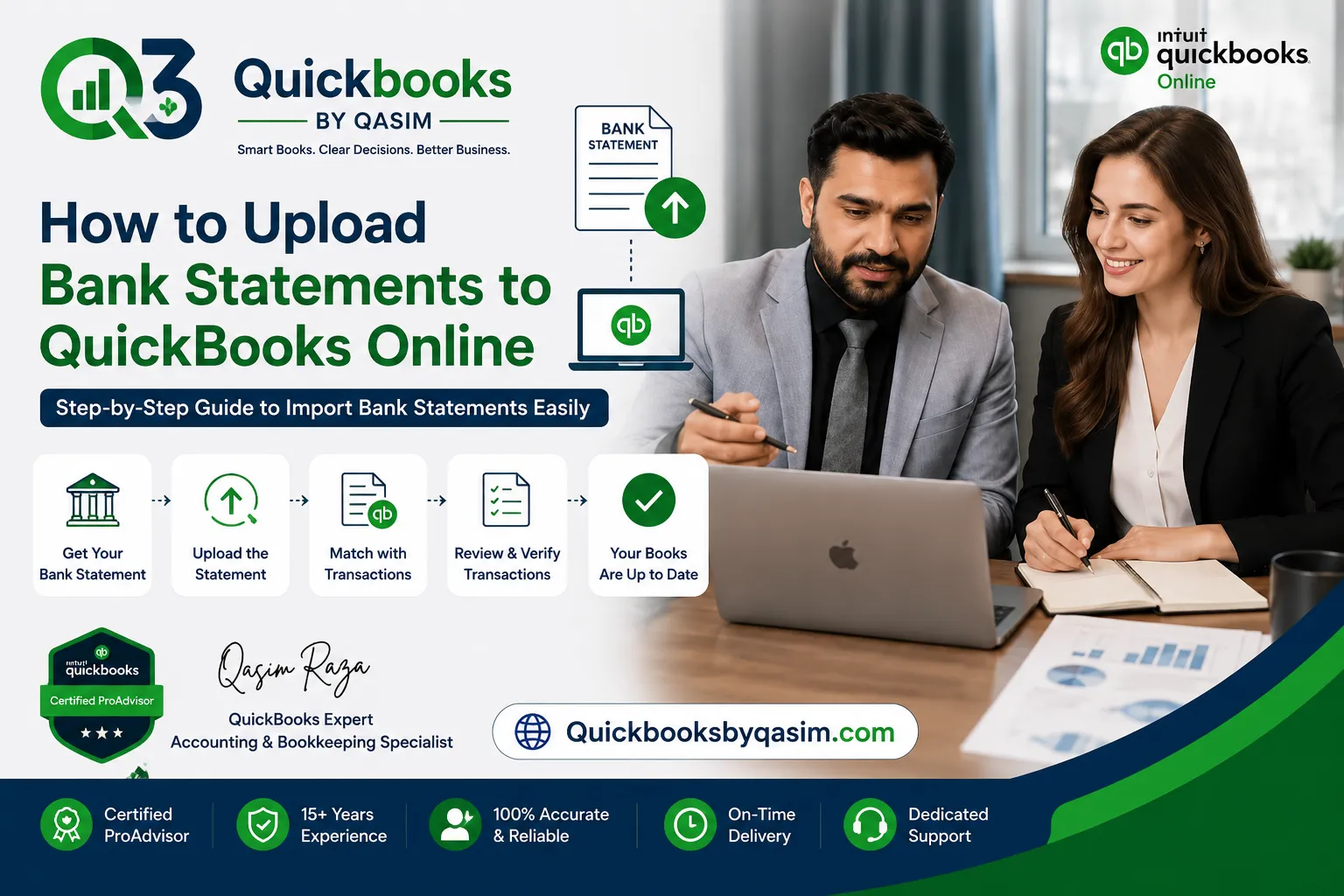
How to Upload Bank Statements to QuickBooks Online
 By qasimquickbooks416@
August 15, 2026
By qasimquickbooks416@
August 15, 2026
How to upload bank statements to QuickBooks Online is one of the most common questions business owners ask when managing their bookkeeping. Many users waste hours entering transactions manually. As a result, errors increase and bank reconciliation becomes difficult. Fortunately, QuickBooks Online provides a simple way to import bank transactions directly from your bank statement files. Therefore, you can save time, improve accuracy, and keep your accounts updated.
As a QuickBooks Online expert, I recommend learning this process because it simplifies daily bookkeeping. Moreover, it helps you maintain accurate financial records throughout the year. Whether you receive your statement in CSV, QBO, OFX, or TXT format, QuickBooks Online can import the data quickly. Consequently, you can review, categorize, and reconcile transactions with confidence.
Why Upload Bank Statements to QuickBooks Online?
Many businesses still enter transactions manually. However, manual entry often leads to duplicate records, missing transactions, and reporting errors. When you import bank transactions from a statement file, QuickBooks Online records them faster and more accurately.
Key benefits include:
- Saves bookkeeping time
- Reduces data entry errors
- Improves financial accuracy
- Speeds up bank reconciliation
- Keeps financial reports updated
- Simplifies month-end closing
Additionally, imported transactions allow users to identify missing entries and compare actual bank activity with accounting records. Therefore, businesses gain better visibility into their finances.
Supported File Formats for Bank Statement Upload
Before learning how to upload bank statements to QuickBooks Online, you should understand which file formats QuickBooks supports.
QuickBooks Online commonly accepts:
- CSV (Comma-Separated Values)
- QBO (QuickBooks Online File)
- OFX (Open Financial Exchange)
- TXT (Text File)
Although QBO files usually provide the smoothest import process, CSV files remain the most widely used format. Therefore, most banks offer CSV exports for downloading bank statements.
Always review your file before uploading. In addition, ensure the file includes transaction dates, descriptions, and amounts.
How to Upload Bank Statements to QuickBooks Online
Follow these steps to upload bank statements successfully.
Step 1: Sign in to QuickBooks Online
First, log in to your QuickBooks Online account using your administrator credentials. Then, navigate to the Banking section from the left menu.
If your QuickBooks version displays “Transactions” instead of “Banking,” select Transactions > Bank Transactions.
Step 2: Open the Upload Option
Next, choose the bank account where you want to import transactions.
Click:
Link Account ▼ > Upload from File
If your bank account already exists in QuickBooks Online, select it from the list. Otherwise, create a new account before continuing.
Step 3: Select Your Bank Statement File
Browse your computer and locate the statement file.
Choose the downloaded file and click Open. After that, click Next to continue.
If QuickBooks detects formatting issues, it may display an error message. Therefore, verify that your file uses a supported format.
Step 4: Map the Columns
This step is important when importing CSV files.
QuickBooks asks you to match the columns with:
- Date
- Description
- Amount
In some cases, separate columns exist for withdrawals and deposits. Therefore, match them correctly to avoid inaccurate transaction records.
After mapping the fields, click Next.
Step 5: Review Imported Transactions
QuickBooks Online displays all imported transaction details.
Carefully review:
- Transaction dates
- Payee descriptions
- Deposit amounts
- Expense amounts
If everything appears correct, click Next and then Yes to finalize the upload.
At this stage, QuickBooks Online will import bank transactions into the selected account.
Step 6: Categorize Transactions
After the upload finishes, review each transaction.
Assign proper categories such as:
- Office Expenses
- Utilities
- Sales Income
- Payroll Expenses
- Travel Expenses
Proper categorization improves reporting accuracy. Additionally, it helps generate reliable financial statements.
Common Issues When Uploading Bank Statements
Sometimes users encounter errors during the upload process. Fortunately, most problems have simple solutions.
Incorrect File Format
QuickBooks will reject unsupported formats.
Therefore, convert your statement into CSV, QBO, OFX, or TXT format before uploading.
Date Format Errors
Many CSV imports fail because of incorrect date formatting.
For example:
- MM/DD/YYYY
- DD/MM/YYYY
Check your bank file and ensure QuickBooks recognizes the format correctly.
Duplicate Transactions
Users often upload the same statement multiple times.
As a result, duplicate entries appear in QuickBooks Online. Therefore, review imported transactions before approving them.
Missing Columns
QuickBooks requires transaction dates and amounts.
If these columns are missing, the upload may fail. Therefore, verify all required fields before importing.
Best Practices to Import Bank Transactions Successfully
Experienced bookkeepers follow several best practices when importing bank statement files.
Download Recent Statements
Always download the most recent statement directly from your bank.
Consequently, you reduce the risk of importing outdated information.
Review Data Before Import
Open the file before uploading it.
Check for:
- Blank rows
- Missing dates
- Special characters
- Incorrect amounts
This simple step helps prevent import failures.
Reconcile Accounts Regularly
After you import bank transactions, complete monthly bank reconciliation.
As a result, you can identify discrepancies quickly and maintain accurate records.
Create Backup Records
Maintain copies of original bank statement files.
Therefore, you can reference them if questions arise during audits or financial reviews.
How Bank Reconciliation Becomes Easier After Uploading Statements
Many QuickBooks users struggle with reconciliation because transactions are missing or entered incorrectly.
When you upload bank statements regularly, QuickBooks matches imported transactions with existing records. Consequently, the reconciliation process becomes faster and more accurate.
Furthermore, accurate bank reconciliation helps businesses:
- Detect fraud
- Find duplicate transactions
- Identify missing entries
- Improve reporting accuracy
- Maintain audit-ready records
Because of these advantages, financial professionals recommend importing statements consistently.
Manual Upload vs Direct Bank Connection
QuickBooks Online offers both manual uploads and direct bank feeds.
A direct bank connection downloads transactions automatically. However, not every bank supports stable integration.
Manual uploads provide better control because you can review statement files before importing them. Additionally, manual uploads are useful when bank connections fail or historical transactions are needed.
Many businesses use both methods. Therefore, they maintain uninterrupted transaction records and accurate bookkeeping.
Conclusion
Understanding how to upload bank statements to QuickBooks Online can save significant time and improve bookkeeping accuracy. Instead of entering transactions manually, you can upload statement files, review imported data, and categorize transactions efficiently. Furthermore, QuickBooks Online supports multiple file formats, making the process simple for most businesses.
By following the steps outlined above, you can confidently upload bank statements, import bank transactions, and complete bank reconciliation with greater accuracy. Most importantly, regular uploads help maintain clean financial records, reduce bookkeeping errors, and support better business decisions. If you use QuickBooks Online consistently, mastering this feature will make your accounting workflow much more efficient.
For a complete overview of QuickBooks Online, read our QuickBooks Online Complete Guide 2026
1 Comment