
How to delete an invoice from QuickBooks and fix invoicing errors quickly How to delete an invoice from QuickBooks is a common
Qasim Raza | QuickBooks Expert


Accounting & Bookkeeping
QuickBooks
 By qasimquickbooks416@
August 16, 2026
By qasimquickbooks416@
August 16, 2026
How to Delete an Invoice from QuickBooks
 By qasimquickbooks416@
August 16, 2026
By qasimquickbooks416@
August 16, 2026
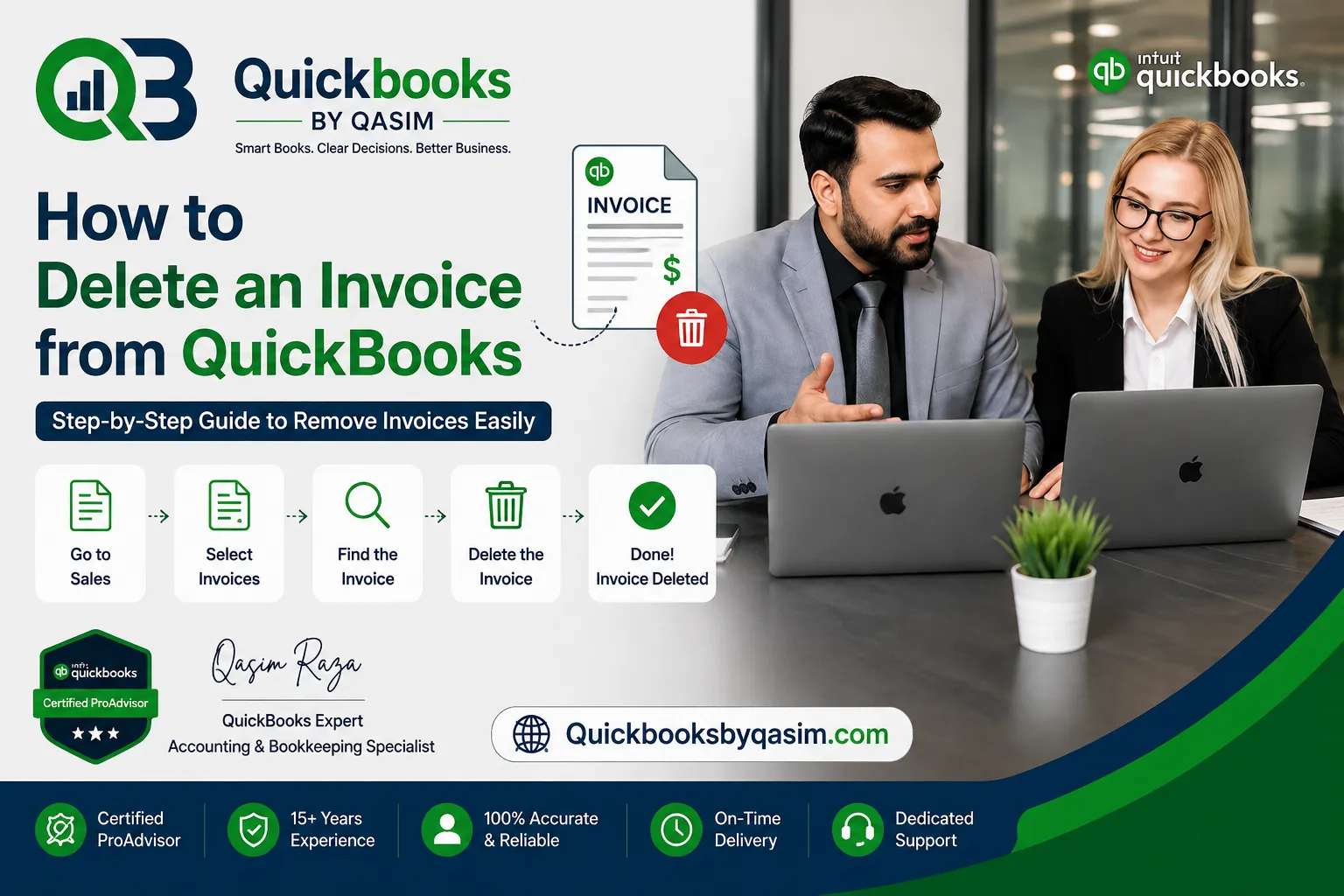
How to delete an invoice from QuickBooks and fix invoicing errors quickly
How to delete an invoice from QuickBooks is a common question among business owners and bookkeepers. A wrong invoice can create accounting errors, customer confusion, and inaccurate financial reports. As a result, many users look for a quick way to remove incorrect invoices. Fortunately, QuickBooks provides options to delete invoices when needed. Therefore, you can maintain accurate records and keep your books clean.
As a QuickBooks Online expert, I often help users correct invoicing mistakes. Sometimes an invoice contains incorrect amounts. In other cases, the wrong customer receives the invoice. Therefore, understanding how to delete an invoice from QuickBooks can save time and prevent reporting issues. Moreover, knowing when to delete or void an invoice helps maintain proper accounting practices.
Why You May Need to Delete an Invoice in QuickBooks
Businesses create invoices every day. However, mistakes can occur during data entry. Consequently, users may need to remove an invoice from their records.
Common reasons include:
- Incorrect customer selection
- Duplicate invoice creation
- Wrong billing amount
- Data entry mistakes
- Accidental invoice generation
- Test invoices created during setup
When these situations occur, users often choose to delete an invoice in QuickBooks to prevent inaccurate reporting. Additionally, removing incorrect invoices helps maintain clean customer balances.
Delete vs Void an Invoice in QuickBooks
Before learning how to delete an invoice from QuickBooks, you should understand the difference between deleting and voiding.
Delete an Invoice
When you delete an invoice, QuickBooks permanently removes the transaction from your records.
As a result:
- The invoice disappears completely.
- Customer balances update automatically.
- Financial reports adjust accordingly.
Void an Invoice
When you void an invoice, QuickBooks keeps a record of the transaction but changes the amount to zero.
As a result:
- The transaction history remains visible.
- Audit trails stay intact.
- The invoice amount becomes zero.
Therefore, many accounting professionals recommend voiding invoices when a historical record is important.
How to Delete an Invoice from QuickBooks Online
If you use QuickBooks Online, follow these steps carefully.
Step 1: Log in to QuickBooks Online
First, sign in to your QuickBooks Online account.
Use your administrator credentials or an account with sufficient permissions.
Step 2: Open Sales
Next, select Sales from the left navigation menu.
Then click Invoices to view your invoice list.
Step 3: Locate the Invoice
Use the search feature to find the invoice.
Review the invoice details before proceeding. This step helps prevent accidental deletion of the wrong transaction.
Step 4: Open the Invoice
Click the invoice number to open the invoice details.
Carefully review the customer name, date, and invoice amount.
Step 5: Delete the Invoice
Click More at the bottom of the invoice window.
Then select Delete.
QuickBooks asks for confirmation before removing the invoice.
Click Yes to complete the deletion.
At this point, QuickBooks permanently removes the invoice from your records.
How to Delete an Invoice from QuickBooks Desktop
Users of QuickBooks Desktop can also remove invoices easily.
Step 1: Open Customer Center
From the top menu, select Customers and then open Customer Center.
Step 2: Find the Invoice
Locate the customer associated with the invoice.
Next, select the invoice from the transaction history.
Step 3: Open the Invoice
Double-click the invoice to view its details.
Verify that you selected the correct transaction.
Step 4: Delete the Transaction
From the menu bar, click Edit.
Then select Delete Invoice.
QuickBooks displays a confirmation message.
Choose OK to complete the process.
The invoice will no longer appear in your customer records or reports.
What Happens After You Delete an Invoice?
Many users wonder what changes occur after they delete an invoice in QuickBooks.
The following actions happen automatically:
- Customer balance decreases.
- Accounts receivable updates.
- Invoice history removes the transaction.
- Related financial reports recalculate.
- Aging reports refresh automatically.
Therefore, always review the impact before deleting an invoice. Even a single invoice can affect financial statements and customer balances.
Situations When You Should Not Delete an Invoice
Although deleting an invoice is sometimes necessary, it is not always the best option.
Avoid deleting invoices when:
- The invoice has already been paid.
- The invoice belongs to a closed accounting period.
- Auditors require transaction history.
- Tax filings already include the invoice.
- Company policies require historical records.
In these situations, many accountants prefer to void an invoice in QuickBooks instead.
Consequently, the transaction history remains available for future reference.
How to Void an Invoice in QuickBooks
If keeping a record is important, use the void option.
QuickBooks Online
- Open the invoice.
- Select More.
- Choose Void.
- Confirm the action.
QuickBooks Desktop
- Open the invoice.
- Select Edit.
- Choose Void Invoice.
- Confirm the change.
As a result, QuickBooks keeps the invoice while setting the transaction amount to zero.
Common Errors When Deleting Invoices
Users often encounter issues while trying to delete an invoice in QuickBooks.
Invoice Is Linked to a Payment
QuickBooks may prevent deletion if a payment is attached.
Therefore, remove the payment association first.
Insufficient User Permissions
Only authorized users can remove invoices.
Therefore, verify your user role and permissions.
Closed Accounting Period
QuickBooks may block changes in closed periods.
In that case, consult your accountant before making adjustments.
Audit Trail Requirements
Some businesses maintain strict auditing procedures.
Therefore, voiding invoices may be a better choice than deletion.
Best Practices Before You Remove an Invoice from QuickBooks
Professional bookkeepers follow several steps before deleting transactions.
Review Customer Records
Confirm the customer details carefully.
This simple review helps avoid accidental deletions.
Back Up Important Information
Save invoice details if future reference may be required.
Therefore, you can access transaction information later if needed.
Verify Reporting Impact
Check how deleting the invoice affects:
- Accounts Receivable
- Profit and Loss Reports
- Customer Balances
- Sales Reports
As a result, you can avoid unexpected reporting differences.
Consult an Accountant
For large invoices or prior-period transactions, seek professional guidance.
Consequently, your accounting records remain accurate and compliant.
Benefits of Maintaining Clean Invoice Records
Learning how to delete an invoice from QuickBooks helps maintain accurate books. In addition, clean invoice records improve financial visibility.
Benefits include:
- Accurate customer balances
- Reliable financial reporting
- Better cash flow tracking
- Improved accounts receivable management
- Faster account reconciliation
- Stronger audit readiness
Therefore, businesses should regularly review invoices and correct mistakes promptly.
Conclusion
Understanding how to delete an invoice from QuickBooks helps businesses correct invoicing mistakes and maintain accurate financial records. Whether you use QuickBooks Online or QuickBooks Desktop, the process is straightforward when performed correctly. However, always review the impact on customer balances, accounts receivable, and financial reports before proceeding.
In many cases, deleting an invoice is the right solution for duplicate or incorrect transactions. However, voiding an invoice may be a better option when you need to preserve transaction history. By following the steps and best practices in this guide, you can confidently manage invoices, maintain accurate records, and keep your QuickBooks data organized and reliable.
For a complete overview of QuickBooks Online, read our QuickBooks Online Complete Guide 2026
1 Comment