
How to record Shopify sales in QuickBooks Online is a common question among eCommerce business owners. Many Shopify sellers
Qasim Raza | QuickBooks Expert


Accounting & Bookkeeping
QuickBooks
 By qasimquickbooks416@
August 28, 2026
By qasimquickbooks416@
August 28, 2026
How to Record Shopify Sales in QuickBooks Online?
 By qasimquickbooks416@
August 28, 2026
By qasimquickbooks416@
August 28, 2026
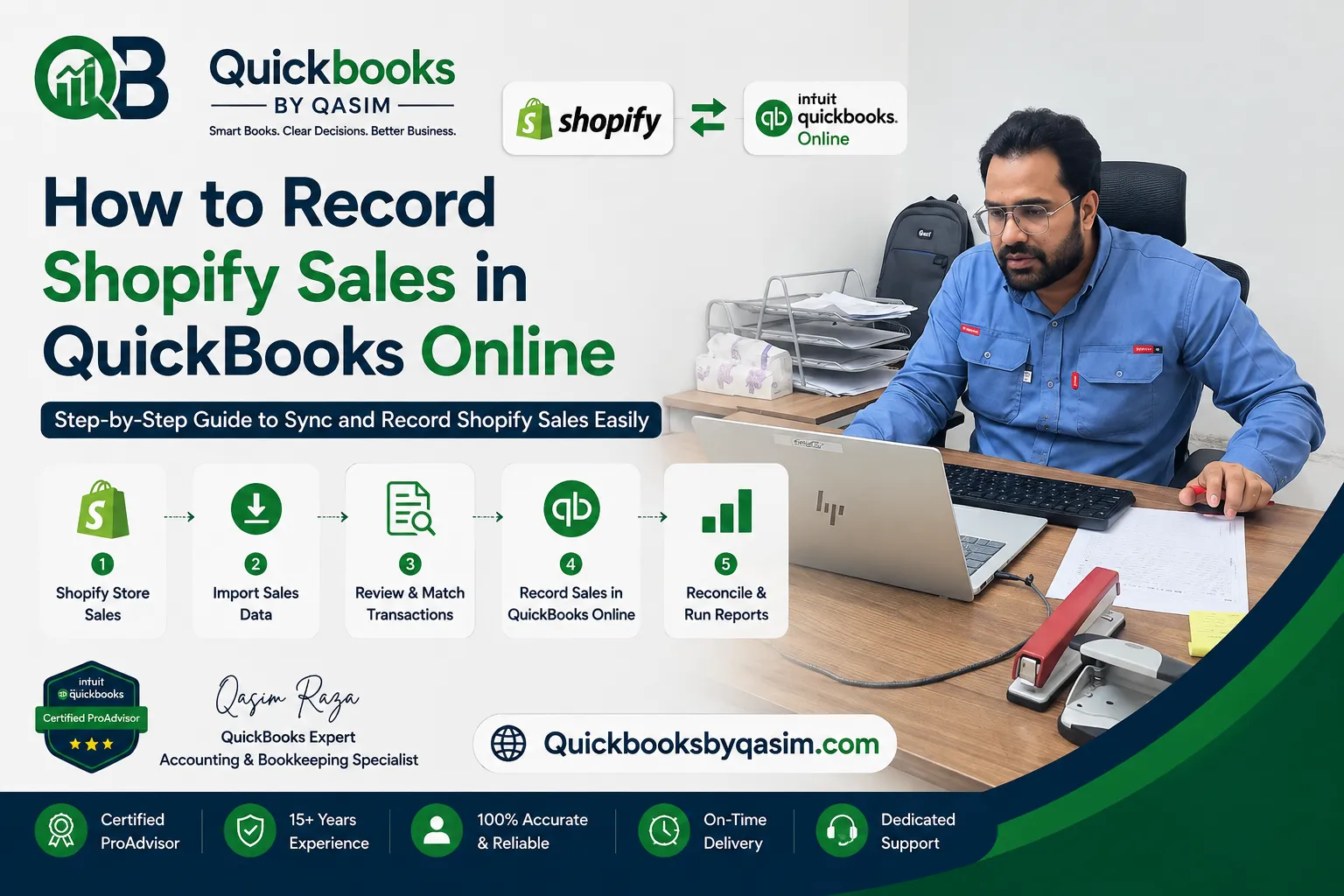
How to record Shopify sales in QuickBooks Online is a common question among eCommerce business owners. Many Shopify sellers notice that bank deposits rarely match actual sales totals. Shopify deducts transaction fees, processing charges, refunds, and adjustments before sending payouts. As a result, bookkeeping can become confusing and financial reports may become inaccurate. Fortunately, QuickBooks Online offers effective ways to record Shopify sales properly. As a QuickBooks Online Expert, I recommend using a structured process that separates sales, fees, taxes, and refunds. This approach improves reporting accuracy, simplifies reconciliation, and provides a clear picture of business profitability.
Why Accurate Shopify Recording Matters
Recording Shopify sales correctly helps business owners understand their true financial performance. Many users mistakenly record Shopify payouts as sales income. However, payouts often represent net amounts after deductions.
Proper Shopify bookkeeping helps you:
- Track sales accurately
- Monitor Shopify fees
- Record customer refunds
- Manage sales tax
- Improve cash flow visibility
- Simplify tax preparation
- Generate accurate reports
Therefore, understanding how to record Shopify sales in QuickBooks Online is essential for maintaining reliable financial records.
Understanding Shopify Sales and Payouts
Before learning how to record Shopify sales in QuickBooks Online, it is important to understand how Shopify processes transactions.
For example, a Shopify report may show:
- Product Sales: $2,000
- Shipping Revenue: $100
- Sales Tax: $150
- Refunds: $100
- Shopify Fees: $60
- Processing Fees: $40
The final bank deposit may be $2,050.
Although the payout is $2,050, actual sales equal $2,000. Therefore, recording only the payout amount can distort financial reports.
Separating each component creates more accurate bookkeeping.
Accounts to Create in QuickBooks Online
To manage Shopify transactions efficiently, create dedicated accounts.
Recommended accounts include:
Shopify Sales Income
Use this account for product revenue.
Shipping Income
Track shipping charges collected from customers.
Shopify Fees Expense
Record Shopify subscription and transaction fees.
Merchant Processing Fees
Track payment processing costs separately.
Refunds and Returns
Use this account to record customer refunds.
Sales Tax Payable
Record collected sales tax in a liability account.
These accounts create a structured accounting system and improve reporting accuracy.
How to Record Shopify Sales in QuickBooks Online Manually
Many new Shopify sellers start by recording transactions manually.
Follow these steps.
Step 1: Review Shopify Reports
Open Shopify and review:
- Sales Summary
- Payout Reports
- Refund Reports
- Fee Reports
Gather all transaction details before entering data.
Step 2: Create a Sales Receipt or Journal Entry
Record the full sales amount.
Post product revenue to your Shopify Sales Income account.
This step ensures gross sales remain accurate.
Step 3: Record Shipping Revenue
Separate shipping revenue from product sales.
This approach creates clearer sales reporting.
Step 4: Record Sales Tax
Post collected tax to Sales Tax Payable.
Do not record sales tax as income.
This treatment keeps reports accurate.
Step 5: Record Shopify Fees
Enter Shopify fees as expenses.
Use the Shopify Fees Expense account.
This allows proper profitability analysis.
Step 6: Record Refunds
Record customer refunds in the Refunds and Returns account.
Tracking refunds separately helps evaluate customer returns and sales performance.
Step 7: Match the Bank Deposit
When Shopify sends the payout, match the deposit to the recorded entries.
Consequently, bank reconciliation becomes easier and more accurate.
How to Record Shopify Sales in QuickBooks Online Using Integrations
Automation simplifies Shopify bookkeeping significantly.
Popular Shopify integrations include:
- A2X
- Webgility
- Synder
- QuickBooks Connector
These tools automatically transfer sales data into QuickBooks Online.
They can record:
- Gross sales
- Shipping income
- Sales tax
- Refunds
- Processing fees
- Shopify payouts
Because automation reduces manual entry, it minimizes bookkeeping errors and saves time.
Many growing eCommerce businesses choose this method.
Recording Shopify Fees Correctly
Shopify fees reduce profitability if they remain untracked.
Common fees include:
- Monthly Shopify subscription fees
- Transaction fees
- App subscription fees
- Payment processing fees
Create separate expense accounts whenever possible.
This practice allows you to:
- Monitor platform costs
- Analyze profitability
- Control expenses
- Improve budgeting
Furthermore, fee tracking helps identify opportunities to improve margins.
Recording Shopify Refunds
Refunds play an important role in eCommerce accounting.
Instead of deleting sales, record refunds properly.
Use a dedicated Refunds and Returns account.
This approach helps you:
- Analyze return rates
- Monitor customer satisfaction
- Measure net revenue accurately
As a result, management reports become more meaningful.
Proper refund recording is a key part of how to record Shopify sales in QuickBooks Online.
Recording Shopify Sales Tax
Many sellers collect sales tax automatically through Shopify.
Sales tax is not business income.
Therefore, create a Sales Tax Payable liability account.
Record collected tax separately from revenue.
This method improves compliance and simplifies tax reporting.
Additionally, it helps prevent overstated sales figures.
Reconciling Shopify Payouts in QuickBooks Online
Reconciliation ensures QuickBooks matches actual bank activity.
To reconcile Shopify payouts:
- Review Shopify payout reports.
- Compare payouts with bank deposits.
- Match recorded transactions.
- Investigate discrepancies.
- Confirm balances.
Weekly reconciliation is often best for busy stores.
Consequently, errors are identified quickly and corrected before month-end reporting.
Common Shopify Recording Mistakes
Many Shopify users make similar bookkeeping errors.
Recording Payouts as Sales
Payouts represent net deposits, not gross revenue.
Always record gross sales separately.
Ignoring Processing Fees
Untracked fees make profits appear higher than reality.
Misclassifying Sales Tax
Sales tax belongs in a liability account.
It should never appear as income.
Combining Refunds With Expenses
Keep refund tracking separate for clearer reporting.
Avoiding these mistakes helps maintain accurate financial statements.
Best Practices for Shopify Bookkeeping
To keep Shopify accounting organized, follow these recommendations.
Reconcile Weekly
Frequent reconciliation prevents major discrepancies.
Use Dedicated Accounts
Separate revenue, fees, taxes, and refunds.
Automate When Possible
Automation improves consistency and saves time.
Review Reports Monthly
Analyze sales, expenses, and profitability regularly.
Keep Supporting Documentation
Retain Shopify reports for audits and financial reviews.
These practices improve bookkeeping accuracy and support business growth.
Benefits of Proper Shopify Sales Recording
Businesses that record Shopify sales correctly enjoy several advantages.
These benefits include:
- Accurate Profit and Loss reports
- Better expense tracking
- Simplified tax preparation
- Improved cash flow management
- Faster reconciliations
- Better financial decisions
Additionally, accurate records increase confidence when evaluating business performance.
Reliable numbers help owners make smarter growth decisions.
Conclusion
Understanding how to record Shopify sales in QuickBooks Online is essential for maintaining accurate eCommerce books. Instead of recording Shopify payouts as revenue, businesses should separate gross sales, shipping income, fees, refunds, and taxes. Whether you manage transactions manually or use automation tools, proper recording improves financial reporting, simplifies reconciliation, and provides a clearer picture of profitability. By following these best practices, Shopify sellers can keep QuickBooks Online organized, reduce errors, and make better business decisions based on accurate financial data.
For a complete overview of QuickBooks Online, read our QuickBooks Online Complete Guide 2026