
Discover how to import credit card transactions into QuickBooks Desktop, match expenses, and keep your books accurate and
Qasim Raza | QuickBooks Expert


Accounting & Bookkeeping
QuickBooks
 By qasimquickbooks416@
August 19, 2026
By qasimquickbooks416@
August 19, 2026
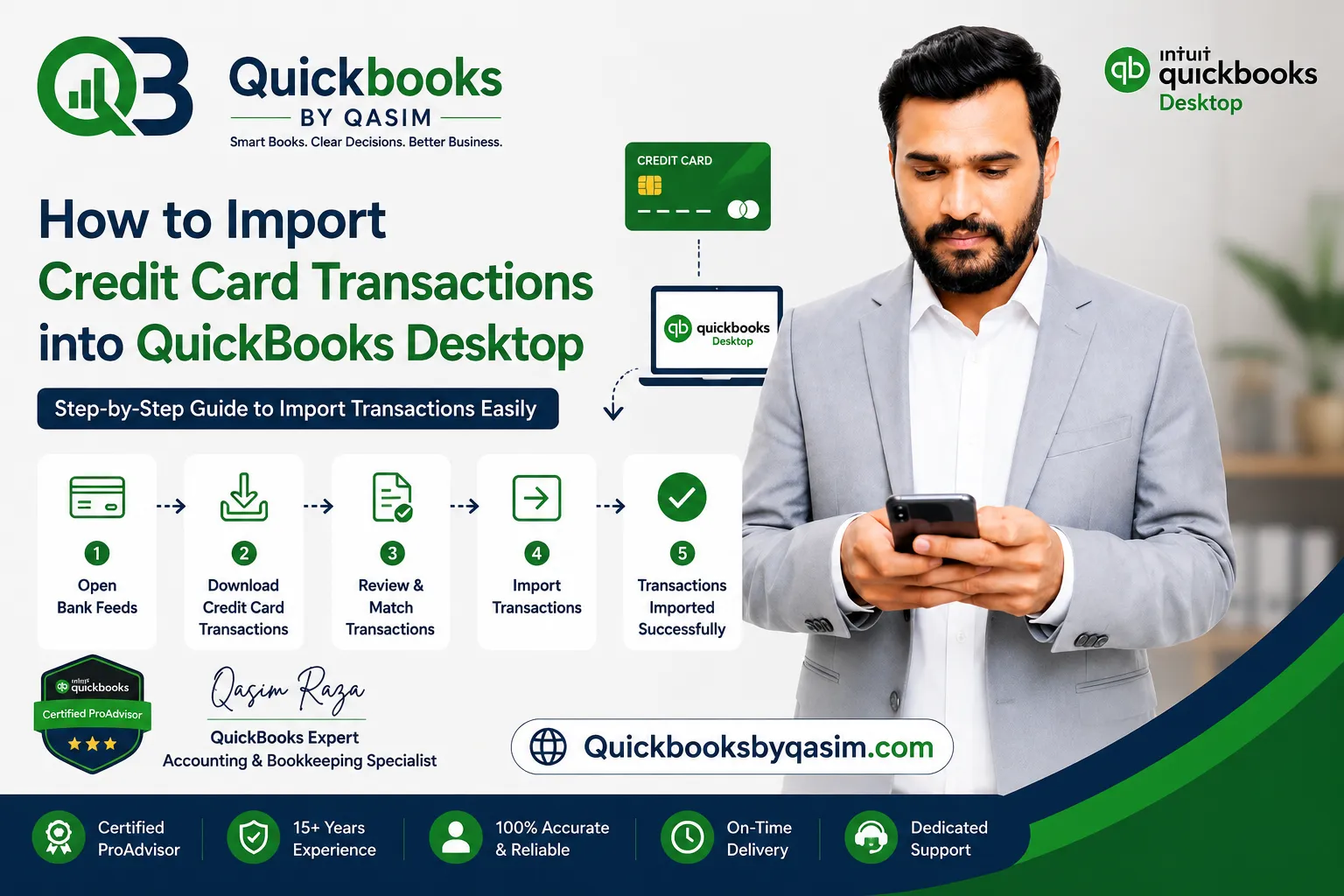
How to Import Credit Card Transactions into QuickBooks Desktop
 By qasimquickbooks416@
August 19, 2026
By qasimquickbooks416@
August 19, 2026
How to import credit card transactions into QuickBooks Desktop is a common question among business owners and bookkeepers. Many users spend hours entering credit card expenses manually. This process often leads to data entry errors, duplicate transactions, and wasted time. Fortunately, QuickBooks Desktop allows you to import and review credit card transactions efficiently. As a QuickBooks expert, I recommend using the import feature to improve accuracy and streamline bookkeeping tasks. Moreover, importing transactions helps maintain updated financial records and simplifies expense tracking throughout the year.
Why Import Credit Card Transactions into QuickBooks Desktop?
Credit card transactions occur daily in most businesses. Therefore, entering each transaction manually can become overwhelming. When you learn how to import credit card transactions into QuickBooks Desktop, you can save valuable time and reduce bookkeeping errors.
Some key benefits include:
- Faster transaction recording
- Improved bookkeeping accuracy
- Better expense tracking
- Easier bank reconciliation
- Reduced duplicate entries
- Enhanced financial reporting
In addition, imported transactions provide a complete record of company spending. As a result, financial statements remain accurate and reliable.
Requirements Before Importing Credit Card Transactions
Before you start the import process, make sure you have the following:
- QuickBooks Desktop installed and updated
- Active credit card account in QuickBooks
- Online banking access
- Downloaded transaction file
- Supported file format such as QBO, CSV, OFX, or QFX
Most financial institutions support QuickBooks-compatible files. However, it is always wise to verify supported formats with your bank before downloading data.
Supported File Types in QuickBooks Desktop
Understanding supported file formats helps ensure a smooth import process.
QBO File
A QBO file is the preferred QuickBooks format. It allows direct import of banking and credit card transactions. Furthermore, it contains detailed transaction information.
CSV File
A CSV file stores transaction data in spreadsheet form. QuickBooks Desktop can import CSV files, although additional mapping may be necessary.
OFX and QFX Files
Many banks provide OFX or QFX files for transaction downloads. These formats often work smoothly during the import process.
Because compatibility varies between QuickBooks versions, always confirm supported formats before proceeding.
How to Import Credit Card Transactions into QuickBooks Desktop Using a QBO File
If your bank provides a QBO file, follow these steps:
- Log in to your credit card provider.
- Download the transaction file in QBO format.
- Open QuickBooks Desktop.
- Select File.
- Click Utilities.
- Choose Import.
- Select Web Connect Files.
- Browse to the downloaded QBO file.
- Click Open.
- Choose the existing credit card account.
- Click Continue.
- Review imported transactions.
- Match or categorize each transaction.
This is the easiest method when learning how to import credit card transactions into QuickBooks Desktop because QuickBooks recognizes the format automatically.
How to Import Credit Card Transactions into QuickBooks Desktop Using a CSV File
Some banks only offer CSV downloads. In that case, follow these steps:
- Download the CSV transaction file.
- Review the file for errors.
- Verify transaction dates and amounts.
- Open QuickBooks Desktop.
- Go to the Banking menu.
- Select the import option available in your version.
- Map CSV columns correctly.
- Match date, amount, payee, and description fields.
- Complete the import process.
- Review imported transactions for accuracy.
Before importing, remove blank rows and special characters. Consequently, the process becomes smoother and more reliable.
Reviewing Imported Transactions
After learning how to import credit card transactions into QuickBooks Desktop, the next step is transaction review.
Carefully verify:
- Transaction dates
- Vendor names
- Expense categories
- Amounts charged
- Duplicate entries
Additionally, compare imported records with your credit card statement. This practice helps identify discrepancies before reconciliation.
Matching Credit Card Transactions
Matching imported transactions improves bookkeeping accuracy.
For example, suppose you previously recorded a purchase manually. When QuickBooks imports the same transaction, it may suggest a match. Instead of creating a duplicate expense, simply approve the match.
As a result:
- Duplicate records decrease
- Financial reports remain accurate
- Reconciliations become easier
Therefore, always review suggested matches before accepting transactions.
Common Import Errors and Solutions
While learning how to import credit card transactions into QuickBooks Desktop, you may encounter errors. Fortunately, most issues have simple solutions.
Invalid File Format
This error appears when QuickBooks cannot read the file.
Solution:
- Download a supported format
- Use a QBO file whenever possible
- Verify that the download completed successfully
Duplicate Transactions
Duplicates occur when transactions were imported previously.
Solution:
- Review imported records
- Match existing transactions
- Remove duplicates carefully
Missing Transactions
Some transactions may not appear during import.
Solution:
- Adjust the download date range
- Download a new transaction file
- Review bank settings
Data Mapping Errors
CSV imports often generate mapping issues.
Solution:
- Check column assignments
- Verify date formats
- Confirm amount fields
Following these troubleshooting steps can resolve most import problems quickly.
Best Practices for Credit Card Transaction Imports
To maximize efficiency, follow these best practices:
Import Transactions Regularly
Weekly imports prevent large backlogs. Consequently, books remain current.
Reconcile Every Month
Monthly reconciliation ensures imported transactions match statements.
Create Consistent Expense Categories
Consistent categorization improves financial reporting and budgeting.
Backup Your Company File
Always create a backup before importing large batches of transactions.
Review Every Transaction
Never approve imports without reviewing them first. This habit helps maintain accurate records.
These practices support a cleaner accounting system and better financial decision-making.
How Imported Transactions Improve Financial Reporting
Businesses rely on accurate reports to make informed decisions. Therefore, proper transaction imports offer several advantages.
Imported credit card transactions help:
- Track spending patterns
- Monitor business expenses
- Improve cash flow analysis
- Generate accurate profit and loss reports
- Simplify tax preparation
Furthermore, timely imports reduce the risk of missing deductible business expenses. As a result, accounting records remain organized throughout the year.
Conclusion
Understanding how to import credit card transactions into QuickBooks Desktop can save time, reduce manual work, and improve bookkeeping accuracy. By using supported file formats, reviewing imported data, and matching transactions correctly, you can maintain reliable financial records. In addition, regular imports simplify reconciliations and support better reporting. Whether you use a QBO or CSV file, following the right process ensures a smooth import experience and helps keep your QuickBooks Desktop company file accurate and up to date.