
Discover how to reclassify transactions in QuickBooks Desktop, correct account errors, and maintain accurate financial
Qasim Raza | QuickBooks Expert


Accounting & Bookkeeping
QuickBooks
 By qasimquickbooks416@
August 25, 2026
By qasimquickbooks416@
August 25, 2026
How to Reclassify Transactions in QuickBooks Desktop
 By qasimquickbooks416@
August 25, 2026
By qasimquickbooks416@
August 25, 2026
How to reclassify transactions in QuickBooks Desktop is a common concern for business owners and bookkeepers who discover accounting errors after recording transactions. A transaction posted to the wrong expense account can distort financial reports and create confusion during month-end reviews. In addition, incorrect classifications can affect budgeting, tax preparation, and profitability analysis. Fortunately, QuickBooks Desktop provides several ways to correct these mistakes. As a QuickBooks expert, I recommend reviewing transactions regularly and reclassifying errors as soon as possible. This approach keeps your books accurate and ensures that financial statements reflect your true business performance.
What Does Reclassifying Transactions Mean?
Reclassifying transactions means changing a transaction from one account, class, customer, or category to another. Businesses often need this adjustment when transactions were assigned incorrectly during data entry.
For example:
- Office supplies posted to equipment expense
- Fuel costs posted to travel expense
- Advertising costs posted to miscellaneous expense
- Vendor payments assigned to the wrong account
When you understand how to reclassify transactions in QuickBooks Desktop, you can quickly correct these errors and improve report accuracy.
Why Reclassifying Transactions Is Important
Accurate transaction categorization supports reliable financial reporting.
Proper transaction reclassification helps businesses:
- Improve bookkeeping accuracy
- Generate reliable reports
- Simplify tax filing
- Support audits
- Track expenses correctly
- Analyze profitability accurately
- Maintain compliance
Therefore, reviewing account classifications regularly should be part of every bookkeeping process.
Common Reasons to Reclassify Transactions
Many businesses need transaction reclassification throughout the year.
Common reasons include:
- Data entry mistakes
- Wrong expense account selection
- Incorrect vendor assignment
- Department changes
- Class tracking errors
- Account restructuring
- Accountant adjustments
As businesses grow, account structures often evolve. Consequently, reclassification becomes necessary to maintain organized records.
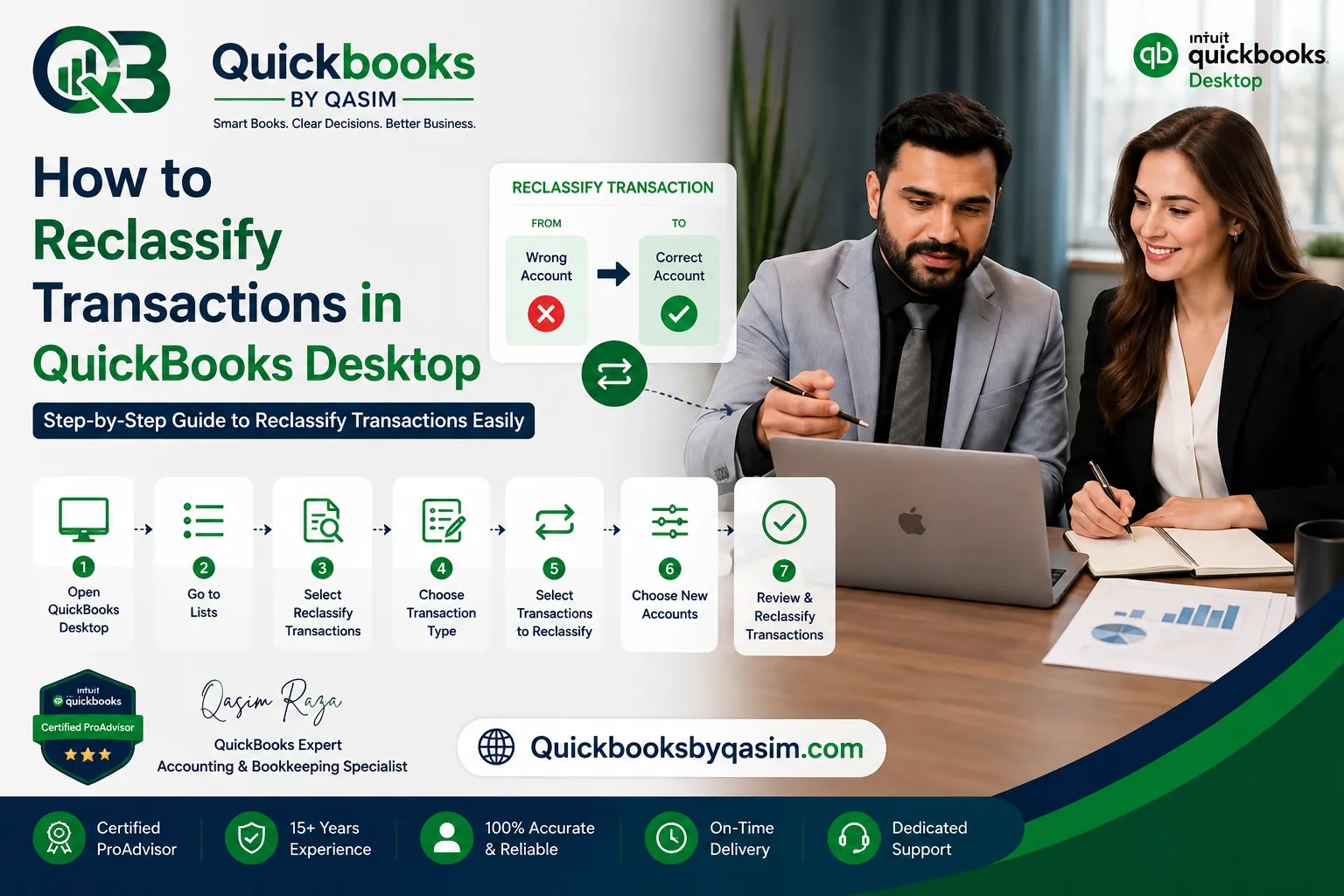
How to Reclassify Transactions in QuickBooks Desktop Manually
The most common method involves editing individual transactions.
Follow these steps:
Step 1: Open QuickBooks Desktop
Launch QuickBooks Desktop and open the company file.
Step 2: Locate the Transaction
Find the transaction through:
- Bank register
- Vendor center
- Customer center
- Transaction report
Review the transaction carefully.
Step 3: Open the Transaction
Double-click the transaction to open it.
Verify all details before making changes.
Step 4: Change the Account
Replace the incorrect account with the proper account.
Review the revised account assignment.
Step 5: Save the Changes
Click Save & Close.
QuickBooks updates the transaction automatically.
This method is useful when correcting only a few entries.
How to Reclassify Transactions Through the Accountant Tools
Some versions of QuickBooks Desktop Accountant provide advanced reclassification features.
To use them:
- Open QuickBooks Desktop Accountant.
- Select Accountant.
- Choose Client Data Review.
- Select Reclassify Transactions.
- Filter transactions by account.
- Highlight desired transactions.
- Select the new account.
- Apply changes.
This feature saves significant time when working with many transactions.
Therefore, accounting professionals frequently use it during cleanup projects.
Transaction Types You Can Reclassify
When learning how to reclassify transactions in QuickBooks Desktop, it helps to understand which transactions support reclassification.
Common transaction types include:
- Checks
- Bills
- Bill payments
- Credit card charges
- Deposits
- Journal entries
- Expenses
- Vendor transactions
However, some transaction types may require manual adjustments.
Always review QuickBooks restrictions before performing large changes.
Reclassifying Expenses in QuickBooks Desktop
Expense reclassification is one of the most common accounting corrections.
For example:
A fuel expense may have been posted to:
Office Expense
Instead of:
Vehicle Expense
In this situation:
- Locate the expense transaction.
- Open the entry.
- Change the account.
- Save the transaction.
As a result, financial reports display expenses in the proper category.
Reclassifying Income Transactions
Income transactions occasionally require correction as well.
Examples include:
- Product sales posted to service income
- Consulting revenue posted to miscellaneous income
- Rental income assigned to sales revenue
Correct income classification improves profitability reporting and revenue analysis.
Furthermore, accurate income accounts simplify tax reporting.
Reclassifying Journal Entries
Journal entries may also need adjustments.
To reclassify journal entries:
- Open the journal entry.
- Review debit accounts.
- Review credit accounts.
- Update incorrect accounts.
- Save changes.
Ensure that debits and credits remain balanced after making modifications.
Otherwise, financial reports may become inaccurate.
Reviewing Reports After Reclassification
After completing transaction reclassification, verify the results.
Review these reports:
- Profit and Loss Report
- Balance Sheet Report
- General Ledger Report
- Transaction Detail Report
- Trial Balance Report
Additionally, compare reports before and after adjustments.
This verification process confirms that the reclassification achieved the desired outcome.
Common Reclassification Mistakes to Avoid
Businesses often make avoidable mistakes during transaction cleanup.
Changing the Wrong Transaction
Always verify transaction details before editing.
Ignoring Supporting Documents
Review invoices, receipts, and bills before making adjustments.
Reclassifying Reconciled Transactions
Changes to reconciled transactions can create reconciliation problems.
Review carefully before modifying completed periods.
Failing to Review Reports
Always generate updated reports after making corrections.
Avoiding these mistakes helps maintain accounting accuracy.
Best Practices for Transaction Reclassification
To maintain clean financial records, follow these recommendations.
Create a Backup First
Always back up your company file before making large adjustments.
Work by Date Range
Review transactions by month or quarter.
This method improves accuracy and organization.
Consult Your Accountant
Discuss major reclassification projects with your accounting professional.
Maintain Consistent Account Structures
A clear chart of accounts reduces future classification errors.
Document Major Changes
Keep records explaining why transactions were reclassified.
These practices support compliance, auditing, and long-term recordkeeping.
Benefits of Reclassifying Transactions Correctly
Proper transaction reclassification provides several advantages.
These include:
- Accurate financial statements
- Better expense tracking
- Improved budgeting
- Easier audits
- Reliable tax reporting
- Stronger financial analysis
- Better management decisions
Moreover, business owners gain greater confidence in their accounting data.
Because decisions depend on accurate information, proper classification remains essential.
When Should You Reclassify Transactions?
Businesses commonly perform reclassification during:
- Month-end close
- Quarter-end review
- Year-end adjustments
- Tax preparation
- Financial audits
- Accountant reviews
- Cleanup projects
Regular reviews help identify errors before they affect major financial decisions.
Therefore, routine account maintenance should become part of every bookkeeping process.
Conclusion
Understanding how to reclassify transactions in QuickBooks Desktop is essential for maintaining accurate financial records. Whether you need to correct expenses, income, journal entries, or vendor transactions, proper reclassification improves reporting accuracy and supports better business decisions. By following best practices, reviewing reports after changes, and maintaining a consistent chart of accounts, you can keep your QuickBooks Desktop data organized and reliable. Regular transaction reviews help prevent accounting errors and ensure that your financial statements remain accurate throughout the year.
For a complete overview of QuickBooks Online, read our QuickBooks Online Complete Guide 2026