
Discover how to add credit card fees to QuickBooks invoice, track processing charges, and improve profitability with simple
Qasim Raza | QuickBooks Expert


Accounting & Bookkeeping
QuickBooks
 By qasimquickbooks416@
August 26, 2026
By qasimquickbooks416@
August 26, 2026
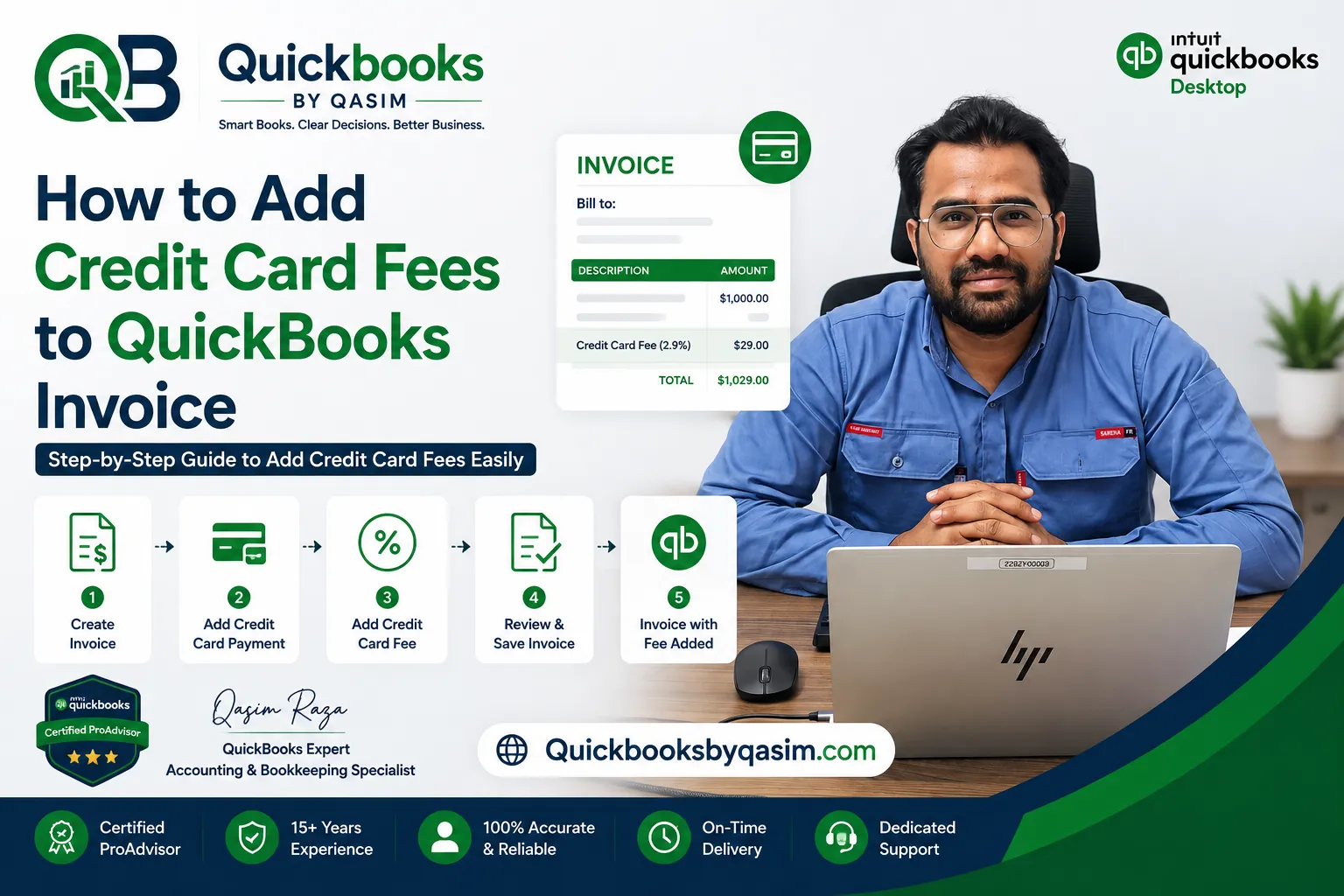
How to Add Credit Card Fees to QuickBooks Invoice
 By qasimquickbooks416@
August 26, 2026
By qasimquickbooks416@
August 26, 2026
How to add credit card fees to QuickBooks invoice is a common question among business owners who want to recover payment processing costs. Credit card transactions offer convenience for customers. However, merchant processing fees can reduce profit margins over time. Many businesses absorb these fees without tracking their impact. As a result, profits may be lower than expected. Fortunately, QuickBooks provides ways to add and track credit card fees on invoices. As a QuickBooks Online Expert, I recommend setting up credit card fee procedures carefully to maintain accurate records, improve transparency, and support better financial management.
What Are Credit Card Fees?
Credit card fees are charges that payment processors collect when customers pay using credit cards. These fees typically cover transaction processing, network costs, and merchant services.
Common credit card fees include:
- Transaction fees
- Processing fees
- Merchant service fees
- Payment gateway fees
- Percentage-based charges
Most providers deduct a percentage of each transaction plus a fixed fee. Therefore, businesses often look for ways to recover these costs.
Understanding these charges is important before learning how to add credit card fees to QuickBooks invoice.
Why Businesses Add Credit Card Fees to Invoices
Many businesses choose to pass processing costs to customers.
Reasons include:
- Protecting profit margins
- Reducing operational costs
- Maintaining competitive pricing
- Improving cash flow
- Recovering processing expenses
- Increasing revenue visibility
Furthermore, charging a separate fee helps customers understand the true cost of payment processing.
Before implementing surcharges, always verify local laws and card network requirements in your area.
Can You Add Credit Card Fees to QuickBooks Invoices?
Yes. QuickBooks allows businesses to add a separate line item representing the credit card fee.
You can:
- Add a fixed fee
- Add a percentage-based fee
- Create a dedicated service item
- Track processing cost recovery
- Include fees on selected invoices
As a result, invoice totals reflect both the product or service amount and any additional processing charge.
This method makes how to add credit card fees to QuickBooks invoice easier and more organized.
How to Create a Credit Card Fee Item in QuickBooks Online
The first step is creating a dedicated service item.
Step 1: Open Products and Services
Sign in to QuickBooks Online.
Navigate to Sales and select Products and Services.
Step 2: Create a New Service Item
Click New.
Select Service.
Step 3: Enter Item Details
Enter a name such as:
Credit Card Processing Fee
Or:
Payment Processing Charge
Use a clear description that customers can easily understand.
Step 4: Assign an Income Account
Select an appropriate income account.
Many businesses create a specific account for recovered processing fees.
Step 5: Save the Item
Review details and click Save and Close.
The item is now ready for use on invoices.
How to Add Credit Card Fees to QuickBooks Invoice
Once the service item exists, you can add it to invoices.
Step 1: Create an Invoice
Click + New.
Select Invoice.
Step 2: Choose a Customer
Select the customer receiving the invoice.
Verify customer information before continuing.
Step 3: Add Products or Services
Enter the products or services being billed.
Review quantities and rates carefully.
Step 4: Add the Credit Card Fee Line
Create a new line item.
Select:
Credit Card Processing Fee
Enter the amount applicable to the transaction.
Step 5: Review the Invoice Total
Confirm that the fee appears correctly.
Verify calculations before sending the invoice.
Step 6: Send the Invoice
Email or print the completed invoice.
Customers can now see the credit card fee clearly listed.
This process demonstrates the most common method of how to add credit card fees to QuickBooks invoice.
Calculating Credit Card Fees
Businesses typically use one of two methods.
Fixed Fee Method
Example:
- Service Amount: $500
- Credit Card Fee: $10
- Total Invoice: $510
This method is simple and easy to explain.
Percentage Method
Example:
- Service Amount: $500
- Processing Fee Rate: 3%
- Credit Card Fee: $15
- Total Invoice: $515
Many businesses prefer percentage-based fees because they closely match processor charges.
Always apply calculations consistently across invoices.
How to Track Credit Card Fees in QuickBooks
Tracking fees separately improves reporting accuracy.
Create dedicated accounts such as:
- Credit Card Fee Income
- Processing Fee Recovery
- Merchant Fee Reimbursement
These accounts help you:
- Measure recovered costs
- Analyze payment expenses
- Monitor fee trends
- Improve profitability reporting
In addition, separate tracking provides cleaner financial statements.
Recording Actual Merchant Fees
Even if customers pay a surcharge, you should still record actual processing expenses.
Create an expense account called:
Merchant Processing Fees
Record processor deductions to this account.
This process allows you to compare:
- Fees collected
- Fees incurred
- Net recovery amounts
Consequently, management gains better visibility into payment costs.
Common Mistakes When Adding Credit Card Fees
Many businesses make errors during setup.
Combining Fees with Product Prices
Keep fees separate whenever possible.
Separate line items improve transparency.
Using Incorrect Accounts
Assign appropriate income and expense accounts.
This approach improves reporting accuracy.
Ignoring Compliance Rules
Some locations restrict credit card surcharges.
Always verify regulations before charging customers.
Charging Inconsistent Fees
Use standard calculations and documented policies.
Consistency improves customer trust and financial accuracy.
Avoiding these mistakes helps maintain professional invoicing practices.
Best Practices for Managing Credit Card Fees
To maximize efficiency, follow these recommendations.
Create Dedicated Fee Items
Separate items simplify invoicing and reporting.
Communicate Fees Clearly
Customers appreciate transparent billing practices.
Review Processing Costs Monthly
Monitor processor charges regularly.
Track Recovery Amounts
Compare charged fees against actual expenses.
Train Staff Consistently
Ensure employees understand company fee policies.
These practices help improve bookkeeping accuracy and customer satisfaction.
Benefits of Adding Credit Card Fees to Invoices
Businesses that properly manage processing fees often experience several benefits.
These include:
- Improved profit margins
- Better cost recovery
- Enhanced financial reporting
- Greater pricing transparency
- Stronger expense control
- Better cash flow management
Additionally, customers can clearly see payment-related charges instead of hidden costs within product pricing.
This transparency often supports stronger business relationships.
When Should You Add Credit Card Fees?
Businesses commonly consider adding fees when:
- Processing costs increase
- Transaction volume grows
- Profit margins shrink
- High-value invoices become common
- Payment processing expenses affect profitability
However, always review legal requirements and customer expectations before implementing a surcharge program.
Conclusion
Understanding how to add credit card fees to QuickBooks invoice helps businesses recover processing expenses while maintaining accurate financial records. By creating dedicated fee items, tracking processing costs separately, and applying consistent invoicing practices, companies can improve profitability and reporting accuracy. Whether you use fixed fees or percentage-based charges, proper setup in QuickBooks ensures transparency, simplifies bookkeeping, and provides better visibility into payment processing expenses. Following these best practices will help you manage credit card fees efficiently and maintain a professional invoicing process.
For a complete overview of QuickBooks Online, read our QuickBooks Online Complete Guide 2026